
We are moving from foundational Active Directory concepts to practical techniques you’ll use in production. It focuses on making Active Directory maintainable and secure through proper administration, Group Policy, delegation, PowerShell automation, DNS and replication troubleshooting, authentication/trusts, monitoring, and mid‑level migration tasks. Assumed prerequisites: basic AD knowledge, admin access to a test lab (Build one using VirtualBox :)), and familiarity with Windows Server and PowerShell.
You are reading part 2 of a 3-part series:
-
Active Directory Management: Intermediate Techniques
-
Advanced Active Directory Concepts: Mastering AD/DS (not yet published)
AD Administrative Best Practices
First, we will look at an organized list of best practices for administering a Windows domain. These practices are closely related to the security of the network as a whole.
High-level principles
-
Least privilege: Grant only the permissions required for a role and remove excessive group membership.
-
Segmentation / tiers: Separate user, admin, and service/account administrative duties into distinct tiers (e.g., Tier 0 for domain/forest, Tier 1 for servers, Tier 2 for workstations).
-
Defense in depth: Combine network controls, endpoint protection, monitoring, and hardening of AD itself.
-
Auditability & change control: Log, review, and formally approve any changes to privileged accounts, delegation, OU/GPO structure, or schema.
Identity & account hygiene
-
Use dedicated, audited admin accounts for interactive sign-in; never use privileged accounts for daily work.
-
Enforce strong password policies, MFA for all privileged accounts, and consider conditional access/step-up authentication for sensitive actions.
-
Disable or delete stale accounts and orphaned SIDs; review privileged group membership quarterly (or more frequently).
-
Use time-limited elevation (just-in-time) for high‑privilege access where possible.
-
Avoid using domain admin for service accounts; use least-privileged service accounts with constrained delegation when needed.
Privilege management & delegation
-
Implement a tiered administrative model and map roles to specific groups with minimal scope.
-
Use group-based delegation rather than assigning permissions to individual user accounts.
-
Prefer Role-Based Access Control (RBAC) patterns; document all delegated rights and the responsible owners.
-
Use ACLs on OU objects with explicit permissions rather than broad inheritance where necessary.
OU, group, and GPO strategy
-
Design OUs for administration and delegation — not just for policy targeting; separate location, function, and device types when useful.
-
Use groups (security groups) for policy and resource access; avoid relying on direct user permissions.
-
Keep GPOs minimal and modular: one purpose per GPO, name consistently, and version/change-document each GPO.
-
Avoid deep nested GPO complexity; test GPOs in a lab and pilot OUs before wide rollouts.
Service accounts & Kerberos
-
Use Managed Service Accounts (MSA) or group MSA (gMSA) where supported to reduce credential management.
-
Limit SPN exposure and monitor for duplicate SPNs.
-
Enforce constrained delegation where delegation is required; avoid unconstrained delegation.
Hardening domain controllers
-
Minimize services and software on DCs; run only required roles.
-
Physically or logically isolate DCs; restrict RDP access to secure admin jump hosts.
-
Patch promptly and test updates in a representative environment.
-
Enable secure channel requirements (LDAPS / signed LDAP) and restrict insecure protocols (NTLM where possible).
Secure admin workstations & jump hosts
-
Provide hardened, dedicated admin workstations (or jump hosts) that are isolated from internet/browsing/email.
-
Enforce MFA, host-based logging, and disk encryption on admin workstations.
-
Require management actions to originate from these hardened hosts.
Monitoring, logging, and detection
-
Enable and centralize AD-related logs (Directory Service, DNS, Security, Sysmon on key hosts) to a SIEM (Security Information and Event Management).
-
Monitor for high-risk events: changes to privileged groups, new schema changes, additions of domain controllers, forwarding/replication anomalies, unusual Kerberos ticket requests, and replication topology changes.
-
Create alerts for suspicious behaviors (sudden privilege escalations, abnormal logon times/locations, sensitive GPO edits).
-
Retain logs long enough to support investigations and compliance needs.
Backup, restore, and disaster recovery
-
Regularly back up system state and AD databases; test authoritative and non-authoritative restores regularly.
-
Document recovery runbooks with clear RTO/RPO objectives and role assignments.
-
Protect backup media and limit restore permissions to a small, audited group.
Patch management & configuration drift
-
Keep domain controllers and critical AD infrastructure patched on a tested cadence.
-
Use configuration management and automated compliance checks to detect drift (baseline images, GPO-based hardening, CIS benchmarks).
Auditing & compliance
-
Enable AD auditing for changes to objects, ACLs, schema, and privileged group membership.
-
Periodically perform privileged access reviews, penetration tests, and red-team exercises focused on AD attack paths.
-
Maintain change logs and evidence for compliance audits.
Automation, documentation & change control
-
Automate repetitive admin tasks safely (PowerShell modules, runbooks) and ensure scripts run with least privilege.
-
Keep an up-to-date inventory of AD objects, trusts, DCs, FSMO roles, and service accounts.
-
Use source control/CI for GPO backup and configuration scripts; document naming conventions and change rationale.
Secure cross-forest/trust configurations
-
Minimize and document forest/domain trusts.
-
Use selective authentication and restrict trust-related privileges.
-
Regularly review trust relationships and trust paths.
Incident preparedness
-
Predefine escalation paths, roles, and investigatory playbooks for AD compromise scenarios (privilege escalation, DC compromise, replication tampering).
-
Keep offline, read-only copies of critical recovery artifacts (e.g., backups, admin credential lists) accessible to designated personnel.
Quick checklist to implement immediately
-
Enforce MFA for all privileged accounts.
-
Create/require dedicated admin workstations and restrict admin logins.
-
Audit and reduce Domain Admins and other high-level group membership.
-
Implement gMSA for service accounts where possible.
-
Centralize AD logs to a SIEM and set high-priority alerts for privileged changes.
-
Test AD backups and restore procedures.
This is a great list of best practices. Perhaps some concepts/terms like SIEM, ACLs, or FSMO roles are unfamiliar at the moment. Some of them may even require advanced knowledge to apply. Feel free to search on your favorite search engine for clarification and further study. If you are a system administrator or responsible for a Windows domain network, consider the Quick Checklist for immediate implementation.
Group Policy Management (GPOs)
Group Policy is the primary mechanism for configuring Windows clients and servers at scale. In Part 1 of this series, we learned that the goal of Active Directory (AD) is to centralize user management, resource management and sharing, authentication, and authorization. Group Policy Management is the tool that AD provides to centrally configure and apply settings to users and computers (security, software, scripts, registry, preferences). Group Policy Objects (GPOs) are created and linked to Sites, Domains, or Organizational Units (OUs); the linked location determines which objects the policy can be applied to. You can find the settings that will be applied to the objects within each GPO; therefore, we can say that a GPO is a container object for settings.
In Server Manager, go to the "Tools" menu and select "Group Policy Management".
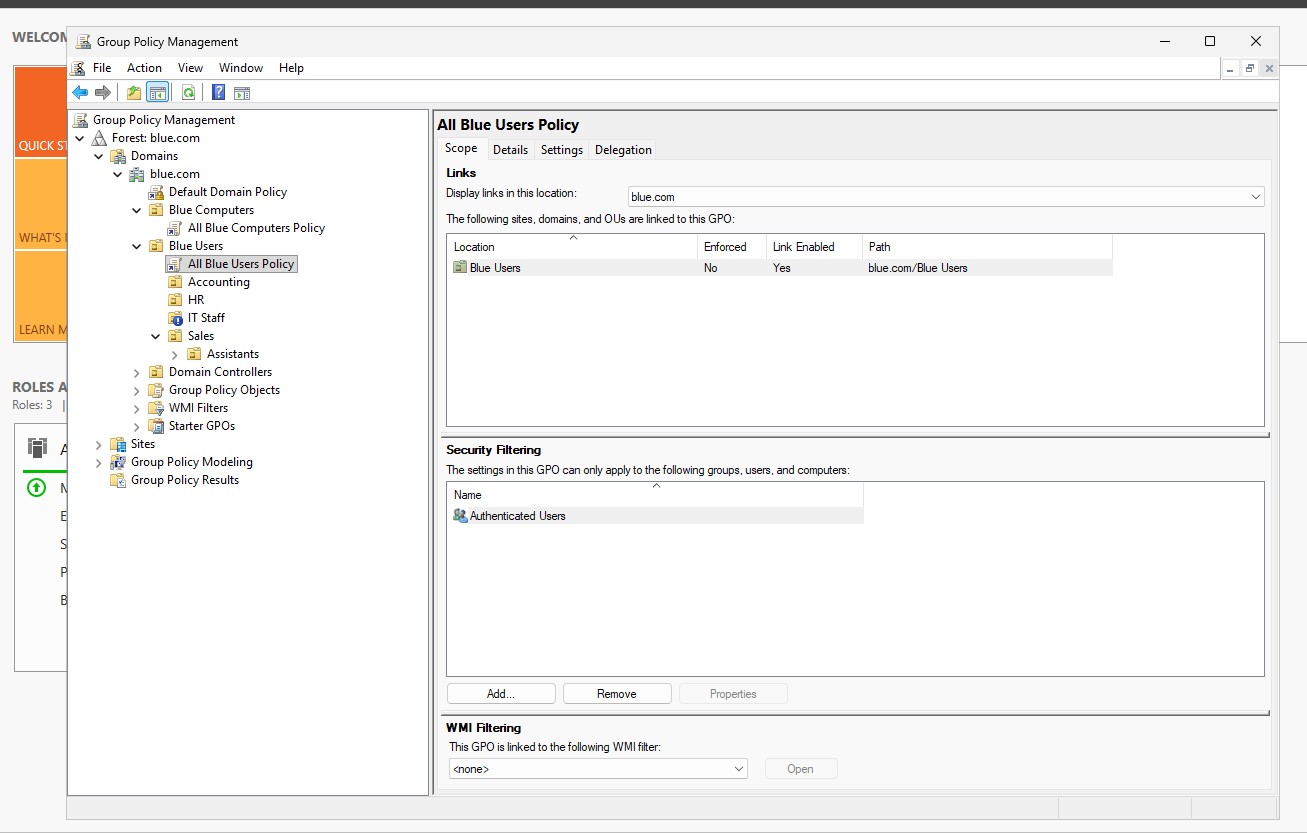 Group Policy Management Console
Group Policy processing follows Local → Site → Domain → OU (parent before child). Child OU GPOs can override parent GPOs; inheritance and link order matter.
Right click on a GPO and select "Edit..." to open the Group Policy Management Editor.
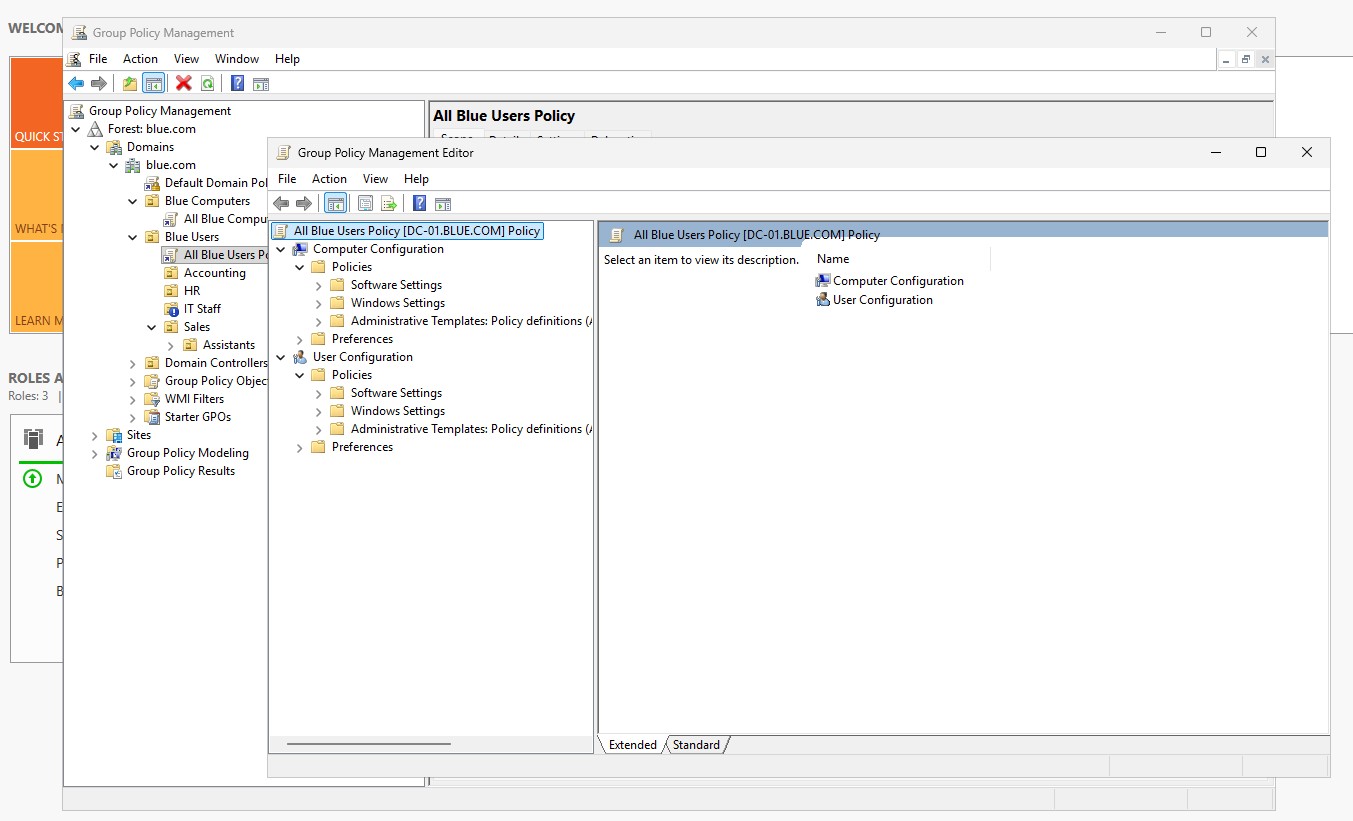 Group Policy Management Editor
Two filtering mechanisms
Use Security Filtering (ACLs on the GPO) and WMI Filters to restrict which users/computers receive the GPO. Group-based targeting (security groups) is preferred for clarity.
-
Security filtering (ACLs on a GPO): controls which user/computer security principals can apply the GPO by granting or denying the “Apply group policy” right on the GPO object. Implemented via the GPO’s security descriptor.
-
WMI Filters: an optional query evaluated on the target client that returns True/False; the GPO applies only if the WMI query evaluates True on that machine.
When to use each:
-
Use security filtering / groups to target by users, computers, or roles (preferred for most scenarios)—clear, fast, auditable.
-
Use WMI filters when you must target by machine attributes not expressible via AD (OS version, free disk, installed RAM, BIOS details, virtualization, specific hardware or installed software presence).
Troubleshooting
Use rsop.msc, gpresult /h report.html, and Group Policy Modeling in GPMC. Check replication, permission filtering, and slow link detection when policies fail.
Group Policy best practices
-
Prefer security-group-based filtering for clarity and performance.
-
Keep WMI queries simple and index-friendly; avoid complex/wide-ranging queries.
-
Test WMI filters in lab and pilot OUs before broad deployment.
-
Use Read + Apply permissions on GPOs for security-filtered groups; avoid granting Full Control broadly.
-
Document filtering rationale and ownership (which groups/WMI filters target which GPOs).
-
Use Group Policy Results/Modeling (gpresult / GPMC) to validate which filter blocked or allowed application.
Delegation and Role-Based Access Control (RBAC)
Delegation in Active Directory (AD) is assigning specific administrative tasks to users/groups without granting full domain admin rights. It reduces reliance on domain‑wide privileges and empowers teams to manage scoped resources safely. Role-Based Access Control (RBAC) applies role definitions to group user membership and maps roles to the set of AD permissions required to perform tasks. Combining delegation and RBAC reduces privilege sprawl, enforces least privilege, and improves auditability.
Use built‑in groups where appropriate; create documented custom groups for organization‑specific roles. Prefer global/universal groups based on domain scope and replication needs. Example roles include Helpdesk (password resets, unlocks), OU Admin (manage objects within an OU), and Server Admin (manage DCs and infra). Use nested groups for scalable membership management.
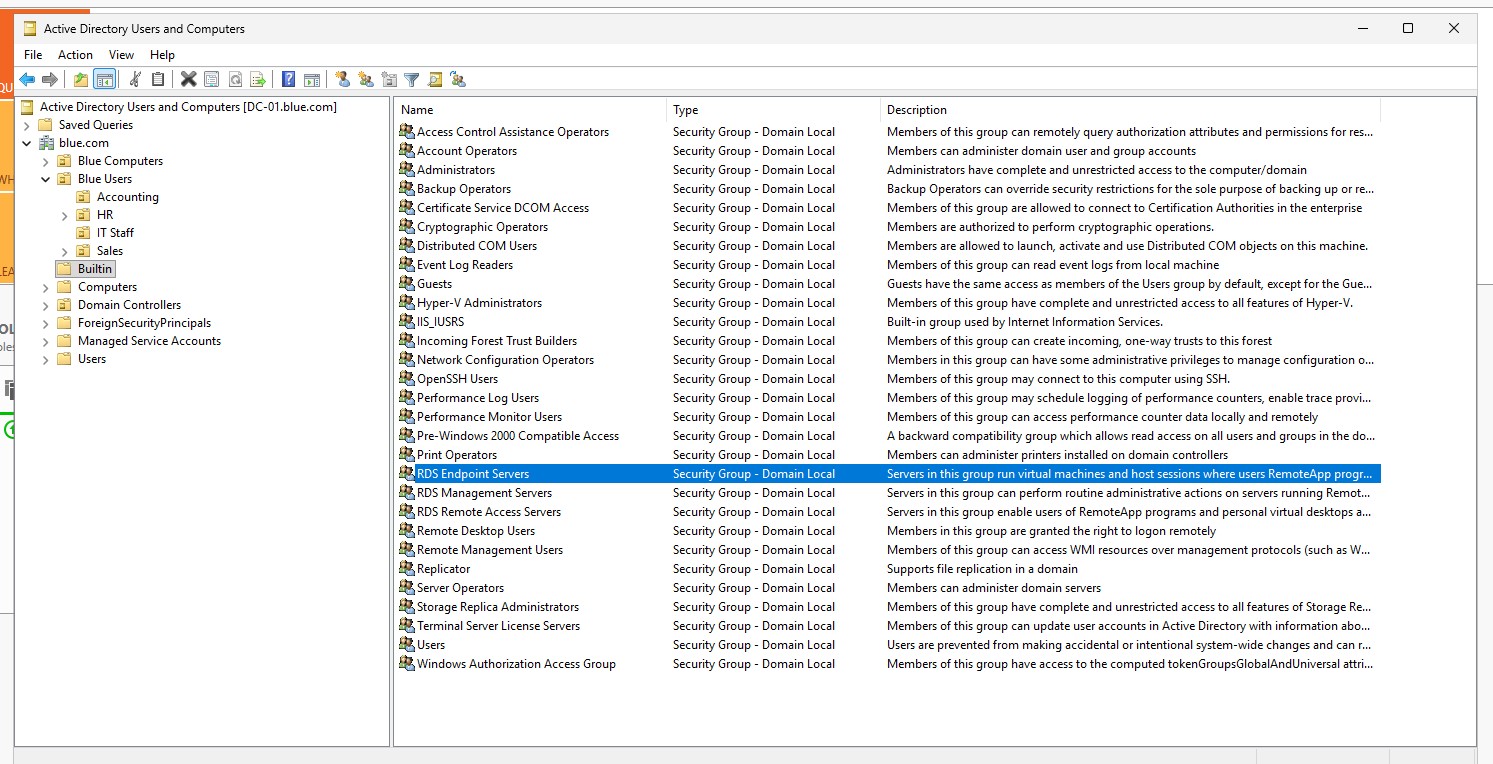 Built-in groups
Key concepts
-
Principal: user or group receiving permissions.
-
Role: named set of responsibilities and required permissions.
-
Scope: OU, container, domain, or specific objects where permissions apply.
-
Permissions: AD rights (e.g., read, write, reset password, create/delete child objects).
-
Group-based assignment: use security groups (global/universal) or nested groups to grant roles.
-
Least privilege: give only the minimum necessary permissions for the role.
-
Separation of duties (SoD): split sensitive tasks across roles to reduce risk.
Designing RBAC for AD (recommended approach)
-
Define roles by function (e.g., Helpdesk Password Reset, OU Admin, Exchange Admin).
-
For each role, list required tasks and translate to specific AD permissions.
-
Define scope (which OUs or object types the role manages).
-
Create security groups for each role (e.g., Role_Helpdesk_PWReset).
-
Apply permissions to groups (not individual users) using ACLs or Delegation Wizard.
-
Document role membership rules and approval process.
-
Review membership and permissions regularly (quarterly recommended).
Step-by-step example: delegate password reset for an OU
-
Create security group: Role_Helpdesk_PWReset.
-
Add helpdesk users to that group.
-
In Active Directory Users and Computers (ADUC), right-click the OU → Delegate Control → Next.
-
Add Role_Helpdesk_PWReset group → Next.
-
Choose “Reset user passwords and force password change at next logon” (or create custom task to set specific permissions) → Finish.
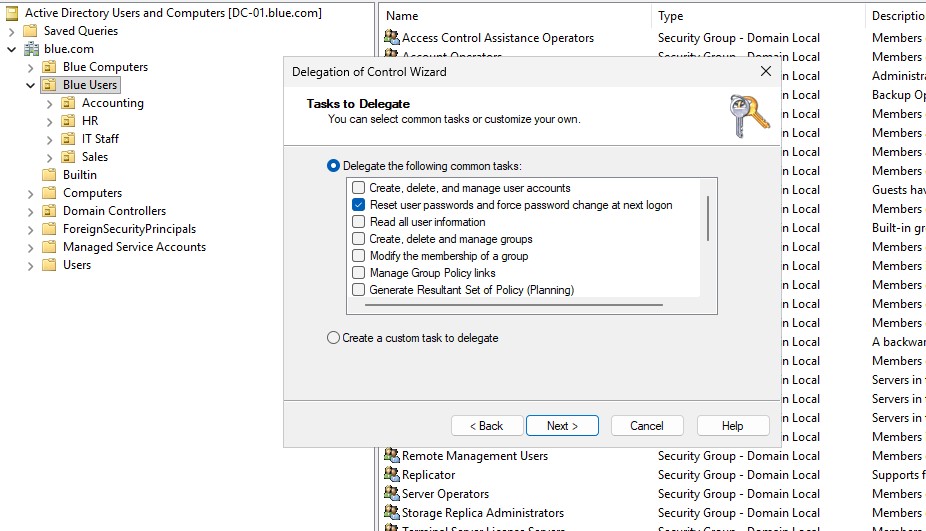
- Verify effective permissions on a sample user object and test workflow (password reset, cannot modify other attributes).
AD PowerShell Advanced Usage
Active Directory PowerShell is a set of cmdlets and .NET APIs that enable administrators to manage AD objects, query directory data, and automate directory tasks from the command line. Centered on the ActiveDirectory module, it exposes high-level cmdlets like Get-ADUser, New-ADUser, Get-ADGroup, and Set-ADComputer for common operations, while also allowing deeper control via DirectoryServices/DirectorySearcher for LDAP-style queries, and ADSI for low-level manipulation. Using PowerShell for AD brings repeatability, scripting, and integration with CI and vaulting tools, making bulk operations and routine administration far more efficient than GUI-only workflows.
Beyond basic management, AD PowerShell supports advanced patterns for performance, safety, and security: server-side filtering, search scoping, paging for large result sets, and targeting specific domain controllers to manage replication concerns. Best practices include writing idempotent scripts that check state before changing it, using -WhatIf/dry-run logic, handling errors with Try/Catch, and keeping credentials out of scripts by using secure vaults or managed identities. These capabilities let teams automate user lifecycle, role-based access changes, ACL deployments, and auditing tasks in a controlled, auditable manner.
Working with users and computers
Open Powershell as administrator on the Domain Controller. Use the following command to see commands available for working with Active Directory users:
Get-Command *aduser...and computers
Get-Command *adcomputer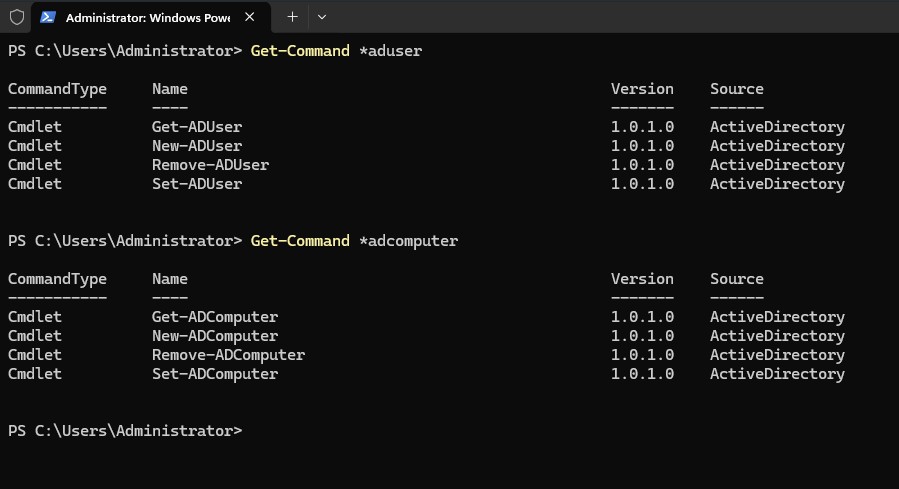
Let's create a new user:
New-ADUser -SamAccountName john.martins -Name "John Martins" -GivenName John -Surname Martins -UserPrincipalName john.martins@blue.com -AccountPassword (Read-Host -AsSecureString "Enter the password") -Enabled $true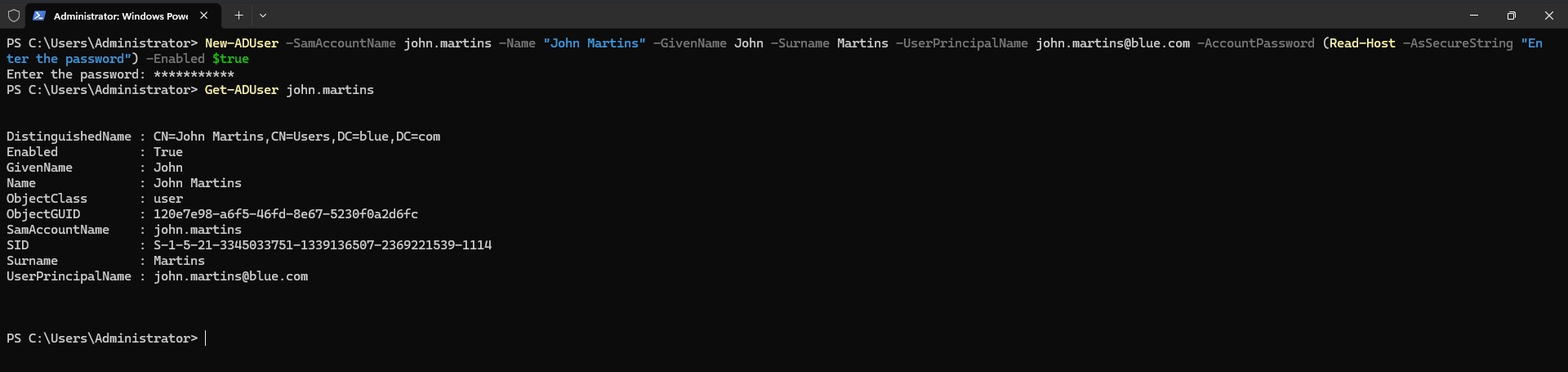
Use Set-ADUser to set other properties like email address:
Set-ADUser john.martins -EmailAddress john.martins@blue.comGet all the properties from the user without filters:
Get-ADUser john.martins -Properties *You can look for locked out accounts with:
Search-ADAccount -LockedOut...and unlock them with:
Unlock-ADAccount johnny.gillA look at the Powershell ISE
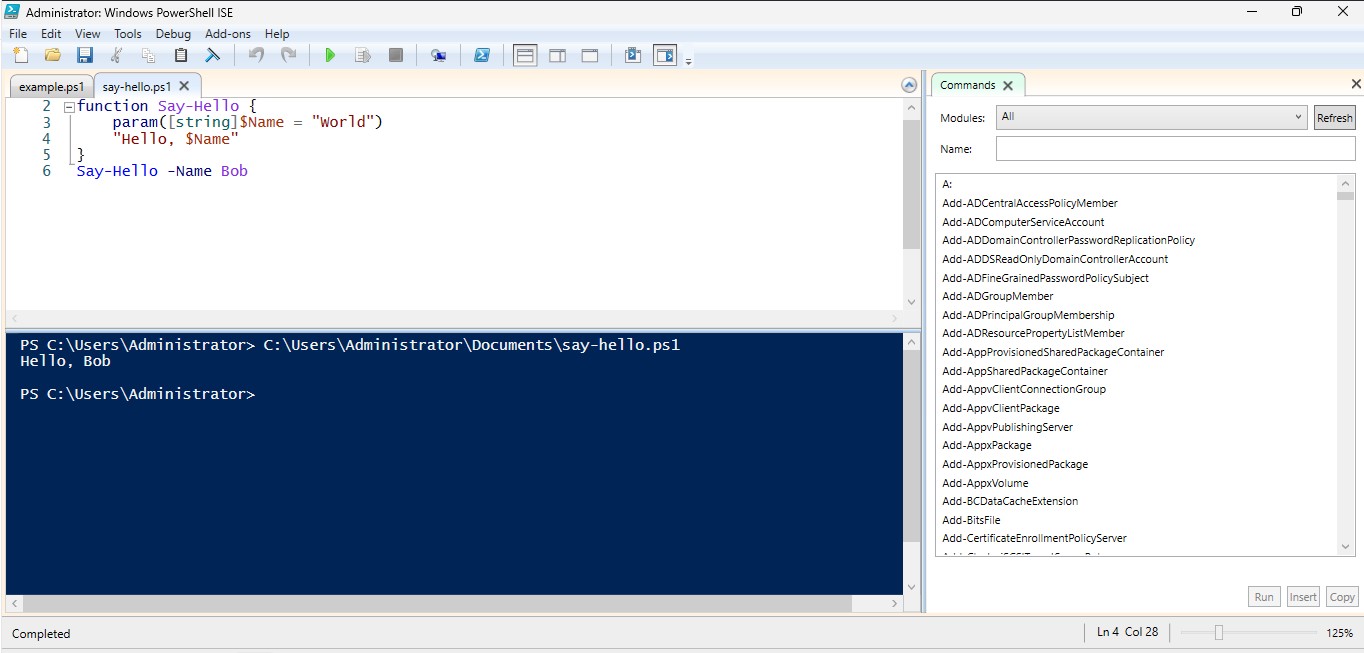
PowerShell ISE is a Windows graphical scripting environment for creating, running, and debugging PowerShell scripts. It combines a script editor with syntax highlighting and tab completion, an interactive console for quick commands, and built-in debugging tools like breakpoints and step execution, making it convenient for learning and rapid scripting tasks.
Typical use is: write or paste code in the top editor pane, run selected lines with F8 or the whole script with F5, test commands in the bottom console, and troubleshoot using breakpoints and the step controls; for more advanced development many now prefer VS Code with the PowerShell extension.
Typical workflow:
-
Write script in the top pane.
-
Run selected lines or the whole script (F8 / F5).
-
Use the bottom pane for interactive commands and testing.
-
Set breakpoints and step through code with the debugger.
The following PowerShell script will select users who haven't logged in within the last 90 days. Then, it will create a short report and save it to a CSV file.
# Params
$DaysInactive = 90
$ReportPath = "C:\Temp\InactiveUsersReport.csv"

# Calculate cutoff date
$Cutoff = (Get-Date).AddDays(-$DaysInactive).ToFileTime()

# Find users whose LastLogon is older than cutoff (no Administrator)
$users = Get-ADUser -Filter {((Enabled -eq $true) -and (LastLogon -lt $Cutoff) -and (LastLogon -ne 0) -and (SamAccountName -ne 'Administrator'))} -Properties LastLogon, SamAccountName, Name

# Convert LastLogon format
$result = $users | Select-Object SamAccountName, Name, @{Name='LastLogon';Expression={[DateTime]::FromFileTime($_.LastLogon)}}

# Export result
$result | Export-Csv -Path $ReportPath -NoTypeInformation

# Disable accounts (uncomment to perform)
# $users | ForEach-Object { Disable-ADAccount -Identity $_.SamAccountName }

$result

Write-Output "Found $($users.Count) users. Report saved to $ReportPath"
Creating scripts in PowerShell is undoubtedly an excellent resource for automation.
DNS and AD Integration
Active Directory relies on DNS to locate domain controllers and key services; DNS provides the name-to-address resolution and SRV records AD clients use to find LDAP, Kerberos, and other domain services. Integrating DNS with AD by using AD‑integrated zones stores DNS zone data in the directory, allowing zone records to replicate automatically with Active Directory replication, simplifying management and improving redundancy because multiple domain controllers can host the same DNS data.
AD‑integrated DNS also supports secure dynamic updates, which lets authenticated computers and domain controllers register and update their own A/AAAA and service records while preventing unauthorized changes. Proper integration requires DCs to point to AD DNS servers (local first), configured forwarders for external name resolution, and monitoring of SRV and msdcs records to ensure clients can discover domain services and replication partners.
It is possible to test your DNS server (in this case running on the Domain Controller DC-01) using the following Powershell cmdlet:
Test-NetConnection -ComputerName DC-01 -Port 53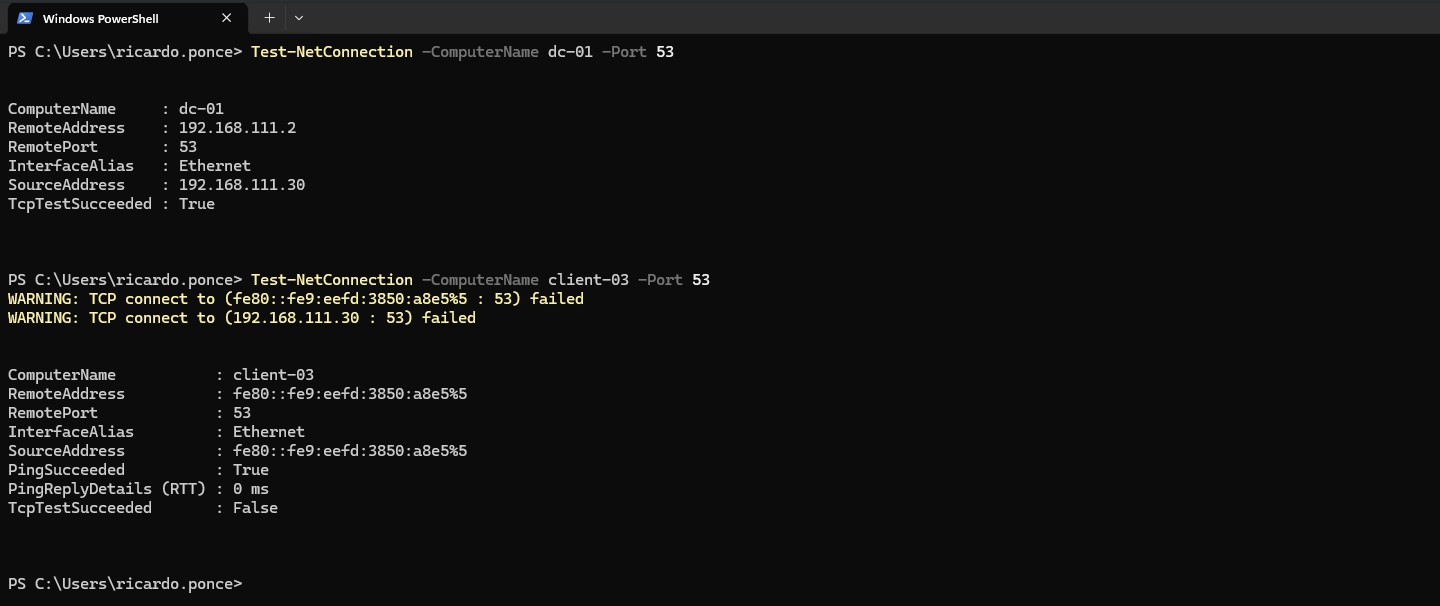 2 systems tested
Active Directory is depended on DNS. In Active Directory, DNS SRV (service) records locate domain controllers and other AD services by mapping a service and protocol (e.g., _ldap._tcp) to a target host and port; AD uses SRV records (with priority, weight, port, and target fields) for clients to find LDAP, Kerberos, Global Catalog, and other roles across sites, enabling site-aware DC selection via additional site-specific SRV records and priority/weight rules; dynamic updates let domain controllers register and update their SRV records automatically, and proper SRV configuration (including corresponding A/AAAA records for targets and correct replication of _msdcs and domain zones) is essential for AD authentication, replication, and overall domain health.
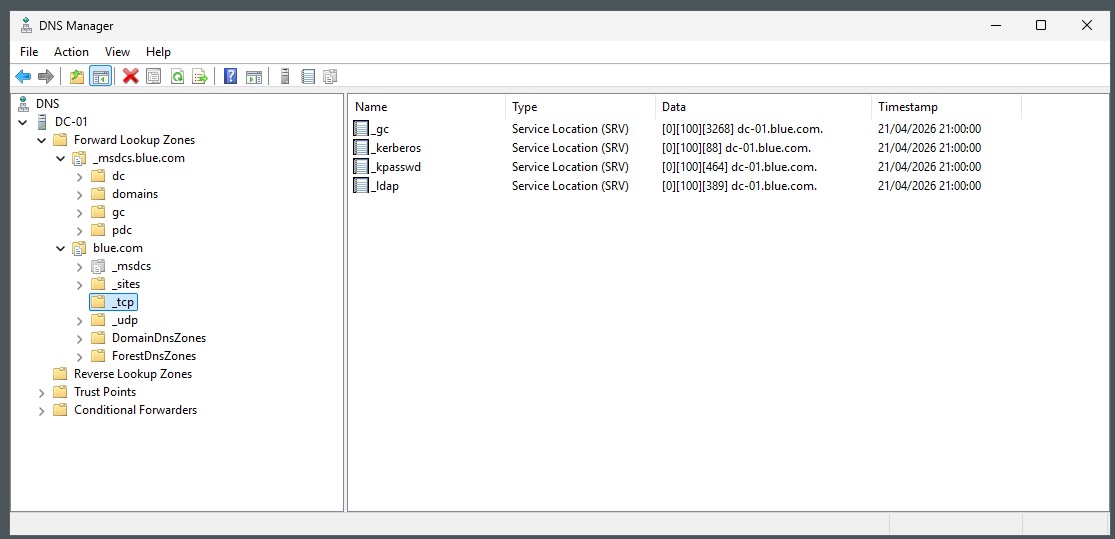 SRV records created by default
Running diagnostics
dcdiag is a Microsoft command-line diagnostic tool that tests the health and functionality of domain controllers and related services, including DNS. It’s included in the Windows Server AD DS role tools and the Remote Server Administration Tools (RSAT) for Windows clients.
Common use cases:
-
Verify DNS registration and name resolution for domain controllers.
-
Test AD replication and Active Directory health.
-
Diagnose DNS server configuration and zone problems that affect AD.
-
Run targeted checks (specific tests) or a full battery of checks.
A practical example would be to redirect the output to a text file:
dcdiag /test:DNS /v > c:\dnstest.txtReplication and Site Topology
Active Directory replication and site topology ensure directory data consistency and efficient authentication across distributed networks. Replication synchronizes domain, configuration, schema, and application partitions between domain controllers using multi-master replication; intra-site replication assumes high-bandwidth, low-latency links and is frequent and near-real-time, while inter-site replication is optimized for WANs with scheduled intervals, compression, and configurable site links. The Knowledge Consistency Checker (KCC) automatically builds intrasite connection topologies and coordinates inter-site bridgehead servers for cross-site replication; administrators control topology behavior through sites, subnets, site links (costs, schedules), and preferred bridgehead assignments to balance latency and bandwidth usage.
Robust replication depends on accurate site and subnet mapping, healthy DNS and time synchronization, and proactive monitoring with tools like repadmin, dcdiag, and Get-ADReplication* PowerShell cmdlets. Conflict resolution uses attribute versioning and timestamps (last-writer-wins), with tombstones protecting against lingering objects after deletions; missteps such as prolonged DC downtime or unsupported restores can cause lingering objects or USN rollback, requiring metadata cleanup or rebuilds. Best practices include designing sites to reflect real network topology, tuning link costs and schedules for business needs, placing RODCs in insecure locations, and regularly testing disaster recovery and replication health.
Authentication and Trusts
Authentication in Active Directory relies on protocols such as Kerberos (the default for user and computer authentication) and NTLM (for backward compatibility). When a user signs in, the domain DC validates credentials and issues Kerberos tickets that permit access to resources without resending passwords; domain controllers enforce password, lockout, and Kerberos policies (ticket lifetimes, clock synchronization). Authentication also involves identity resolution through machine accounts, groups, and ACLs on AD objects, plus services like LDAP for lookups and Smart Card/PKI for certificate-based authentication. Time synchronization (NTP) and reliable DNS are critical: time skew or name resolution failures prevent ticket issuance/validation and cause authentication failures.
Trust relationships connect domains and forests to allow cross-domain/forest authentication and authorization. Trust types include transitive (e.g., domain trusts within a forest or configured forest trusts) and non-transitive; one-way and two-way; external trusts, realm trusts (for Kerberos interoperability with MIT/Heimdal), and forest trusts (between entire forests). The chosen trust type determines who can request authentication and how SID filtering, selective authentication, and inbound/outbound trust semantics are applied to secure access. Best practices include using the minimum required trusts, applying SID filtering for unmanaged domains, monitoring trust-related events, and ensuring secure network channels (VPN/trusted links) between sites to reduce risk of credential abuse.
Monitoring, Auditing, and Logging
Monitoring, auditing, and logging in Active Directory provide visibility into directory health, configuration changes, authentication events, and security incidents. Key telemetry sources include Windows Security, System, and Directory Service event logs on domain controllers; Active Directory Replication and DNS logs; and auditing records collected via Advanced Audit Policy (e.g., account logon, account management, directory service access, policy change). Centralized collection with a SIEM or log aggregator (Windows Event Forwarding, Syslog gateways, or commercial solutions) enables correlation, alerting, and long‑term retention. Regular health monitoring should also include replication status (repadmin/Get‑ADReplication*), DC service/state checks (dcdiag), time and DNS health, and performance counters for LDAP, Kerberos, and NTLM activity.
Audit configuration and log analysis should follow the principle of collecting necessary events while managing volume and privacy: enable targeted audit categories (credential validation, privileged account usage, group membership changes, schema/configuration modifications), enable Global Catalog and directory service auditing where needed, and configure SACLs on sensitive objects for object‑level auditing. Protect logs and ensure secure transport and storage, implement alerting for critical events (failed Kerberos pre‑auth, excessive account lockouts, replication failures, new privileged account creation, trust changes), and periodically review baseline behavior and access patterns to detect anomalies. Retain logs per policy for investigations and compliance, test alerting/playbooks with incident response runbooks, and regularly review and tune audit policies to balance coverage with performance and noise.
Migration and Upgrades (Intermediate)
Migration and upgrades in Active Directory require careful planning to preserve identity data, maintain authentication continuity, and minimize downtime. Common scenarios include domain or forest functional level upgrades, migrating domains between forests (forest/ADMT migration), consolidating or restructuring domains, and upgrading Windows Server OS on domain controllers. Preparation steps include inventorying accounts, groups, GPOs, applications and services that depend on AD, verifying supported functional levels and application compatibility, ensuring healthy replication and backups, and documenting existing site/topology, DNS, and time configuration. Test the upgrade/migration in a lab that mirrors production, create rollback plans, and schedule changes during maintenance windows; for OS upgrades, prefer introducing new DCs running the target OS version, transferring FSMO roles as needed, demoting and decommissioning old DCs, and then raising functional levels only after all DCs run supported versions.
Tooling and post‑migration tasks focus on consistency, security, and cleanup. Use ADMT or third‑party migration tools for account/object migrations (and plan for SIDHistory, password migration, and profile re‑mapping), employ repadmin, dcdiag and Get‑ADReplication* to verify replication health, and run metadata cleanup for decommissioned DCs. After migrations/upgrades, validate authentication (Kerberos/NTLM), group policies, DNS resolution, trusts, and application connectivity; update documentation, monitoring/alerting targets, and backups. Apply security checks: confirm delegated permissions, remove orphaned accounts/computer objects, review privileges and service accounts, and run baseline audits to detect anomalies.
Further Reading and Next Steps
After mastering these intermediate topics, prepare for advanced subjects in part 3 of this series: PKI and certificate services, fine‑grained password policies, AD FS and federation, Azure AD Connect and hybrid identity, advanced recovery techniques (authoritative restores, metadata cleanup), and hardening AD for security. Suggested hands‑on: build a multi‑site lab with multiple DCs, practice replication failures and recovery, and rehearse authoritative restores.